
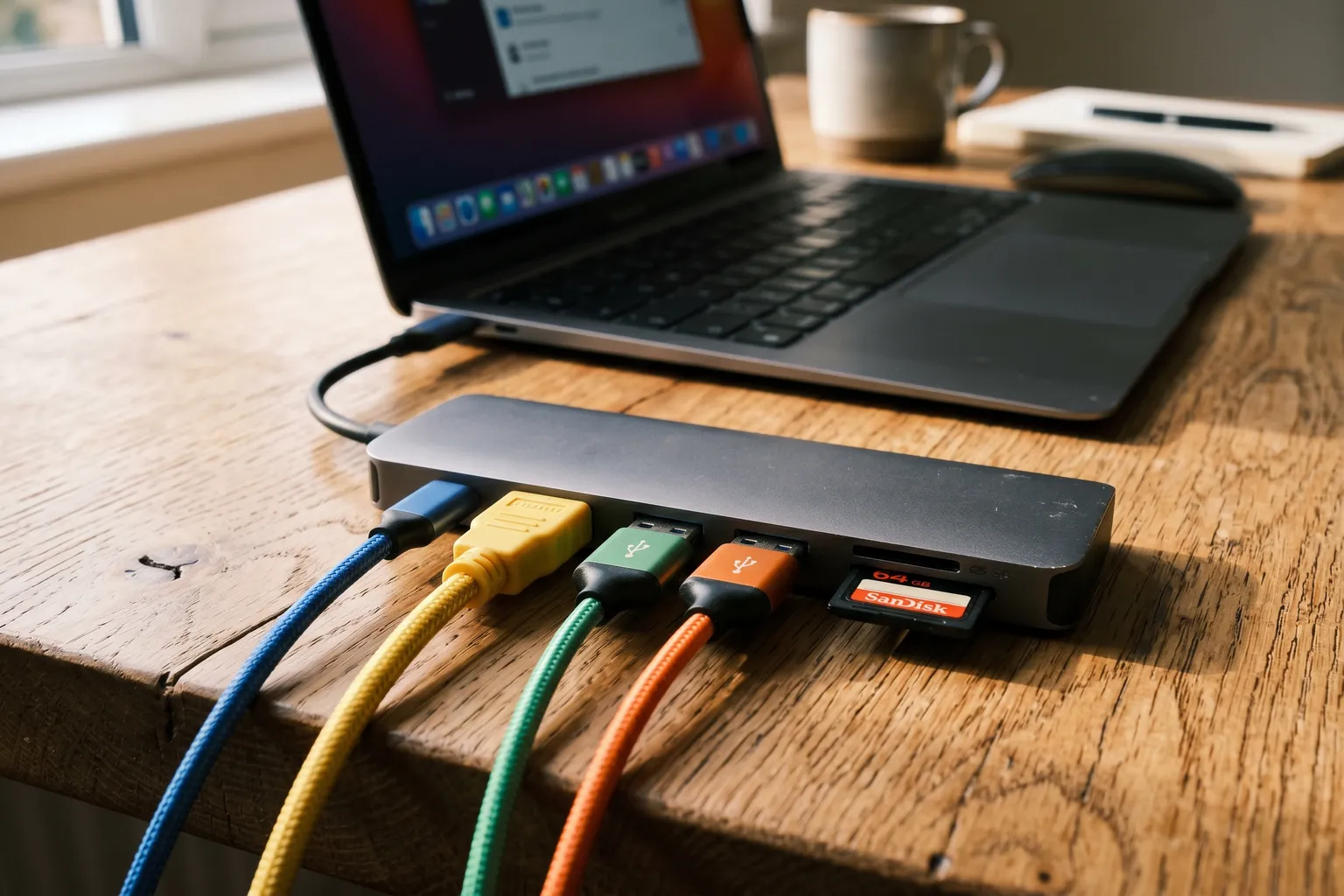
One thing I’ve noticed about USB-C hub coverage: everyone talks about port count and nobody talks about what actually matters — power delivery reliability, display output quality, and whether the thing works consistently after six months.
Let me fix that.
A Note on “Hub” vs “Dock”
This roundup is specifically about USB-C hubs — portable, bus-powered devices that expand a single USB-C port into multiple connections. They’re distinct from Thunderbolt docks, which are typically larger, desk-bound, and use Thunderbolt 4 for higher bandwidth.
If you’re looking for a Thunderbolt 4 dock for a permanent desk setup, most of the products here aren’t the right category.
1. Anker 11-in-1 USB-C Hub — Best Value
Anker discontinued the 565, and its current 11-in-1 replaces it at a much lower price – with a real spec trade-off worth knowing upfront. Ports: a 10Gbps USB-C data port, a 10Gbps USB-A data port, a 4K HDMI port, a 4K DisplayPort, a 100W USB-C Power Delivery input, two USB-A data ports, Ethernet, a 3.5mm audio jack, and microSD/SD slots.
HDMI plus DisplayPort still gives you dual-monitor support, but the ceiling dropped: expect 2K@60Hz on a DisplayPort 1.4 laptop rather than the old 565’s 4K@60Hz on both outputs.
The 100W Power Delivery INPUT is still there, but pass-through charging out to your laptop caps at 85W, not 100W. That still covers most Windows ultrabooks at full speed; a MacBook Pro 14-inch pulling its full 96W will charge slightly slower than it would on a true 100W hub.
Build quality is Anker’s typical level — solid enough for daily use, not premium. Plastic housing, not aluminum.
Where it falls short. No Thunderbolt. Dual-display output tops out lower than the old 565 did. If 4K on both external monitors is a hard requirement, this isn’t the hub for it – look at the Satechi instead and accept fewer total ports.
2. Satechi Thunderbolt 4 Slim Hub Pro — Best for MacBook Users
Satechi replaced the Slim Pro Hub with a genuine Thunderbolt 4 model, and the upgrade is real, not just a rename. Aluminum housing built for passive cooling, three Thunderbolt 4 ports running the full 40Gbps, and up to 100W host charging.
Thunderbolt 4 is the meaningful spec jump from the old model’s USB4. USB4 supported Thunderbolt 4 devices but only at USB4 speeds; this hub runs true Thunderbolt 4 bandwidth across three ports and supports daisy-chaining up to six devices.
Display support covers dual 4K@60Hz or a single 8K@30Hz. A UHS-II SD card reader (up to 312MB/s), Gigabit Ethernet, and 10Gbps USB-A ports round it out. It ships with a Thunderbolt 4 cable and a 150W GaN power supply included.
Where it falls short. The price roughly doubled from the old Slim Pro Hub. It also requires a Thunderbolt 4 or USB4 laptop to get the real benefit – plug it into a plain USB-C laptop and you’re not using most of what you paid for. If you need maximum port count for the price, the Anker 11-in-1 wins. If you have a Thunderbolt 4 Mac or PC and want real bandwidth, this is the pick.
3. CalDigit Element 5 Hub — Best Thunderbolt Hub
CalDigit moved the Element line to Thunderbolt 5, and the Element 5 Hub is a real generational jump from the old Element Hub, not a rename with a new number. Unlike the old model, this one includes display support directly.
What makes it different: four Thunderbolt 5/USB4 v2 ports running up to 80Gb/s, plus three USB-A and two USB-C 10Gb/s ports – nine ports total, up from the old model’s eight. On a Thunderbolt 5 or USB4 v2 host, you get unrestricted use of all four Thunderbolt ports at full bandwidth for external SSDs, displays, and peripherals.
Display support is new here: single 8K, dual 6K/8K, or two 4K@240Hz depending on your host machine. It comes with its own 180W power supply and delivers up to 90W sustained charging, including Offline Charging that keeps connected devices powered even when the hub isn’t plugged into a computer.
Where it falls short. The price roughly doubled and a bit more from the old Element Hub. Triple-display setups aren’t supported on macOS, Thunderbolt 4/3, or plain USB-C PCs – you need a Thunderbolt 5 Windows host for that. It still requires a Thunderbolt or USB4 laptop to unlock the Thunderbolt ports’ real bandwidth; plain USB-C laptops fall back to the USB-A and USB-C 10Gb/s ports only.
4. Plugable 13-in-1 USB-C Hub — Best Port Count
Plugable’s current model (the UD-ULTC4K) drops one port from the old 14-in-1 but adds real display capability: three HDMI and three DisplayPort outputs, driving up to three 4K@60Hz monitors simultaneously – a genuine upgrade over the old model’s setup. It was named “Best Docking Station 2025” by How-To Geek.
This is still the hub for users who need to connect many things at once. A Windows power user with a docking setup but without Thunderbolt is exactly who this is built for.
The DisplayLink technology behind the triple-display support still requires installing Plugable’s driver, and it’s required on macOS specifically – Screen Recording permission has to be granted for the driver to enable external displays, which surprises some Mac users the first time.
100W laptop charging through the rear USB-C port, plus a separate front USB-C port for accessory charging at up to 20W. Lifetime support from Plugable’s team is included, which matters more than it sounds like for a device this dependent on driver updates.
Where it falls short. DisplayLink requirement for multi-monitor mode. HDCP isn’t supported, so protected streaming content may not play on connected displays. Primarily a Windows play — macOS has more limitations with DisplayLink.
Which USB-C Hub Should You Buy?
MacBook Pro / Air user who wants clean design: Satechi Thunderbolt 4 Slim Hub Pro
Windows or Mac user who wants maximum ports at the best price: Anker 11-in-1
Thunderbolt laptop user who needs high-speed peripherals: CalDigit Element 5 Hub
Windows user with many peripherals and a big desk: Plugable 13-in-1
Common USB-C Hub Questions
Why does my hub disconnect when I plug in too many things? Power budget. A USB-C hub’s bus power is limited by the connected laptop and the hub’s own circuitry. Connecting multiple high-power USB devices (external hard drives, USB-C monitors without their own power supply) can exceed the available power and cause devices to disconnect. Solution: use self-powered peripherals where possible, or add a hub with its own power adapter.
Do USB-C hubs work with iPad Pro or iPhone? Yes, with limitations. iPad Pro’s USB-C port supports hubs for file transfer, display output (with supported apps), and power. iPhone with USB-C (iPhone 15+) supports hubs for data transfer and charging. Neither device supports all the same features as a laptop — video output in particular depends on app support. Test before relying on a hub for iPad Pro presentation setups.
Why are some hubs labeled “USB 3.2 Gen 2” and others just “USB 3.0”? Generations indicate bandwidth. USB 3.0 = 5Gbps. USB 3.2 Gen 2 = 10Gbps. USB 3.2 Gen 2x2 = 20Gbps. USB4 = 40Gbps. Higher bandwidth matters if you’re connecting fast SSDs or high-resolution displays. For most use cases (peripherals, charging, slower storage), USB 3.0 speeds are adequate.
Can I use two hubs on the same laptop? Technically yes, though results vary. You can daisy-chain two hubs from a single USB-C port. The available bandwidth is shared across both hubs. Thunderbolt 4 supports daisy-chaining up to 6 devices while maintaining full bandwidth (because Thunderbolt 4 provides 40Gbps). USB 3.2 Gen 2 hubs share bandwidth when daisy-chained.
A Note on Cables
The USB-C cable connecting your hub to your laptop is the overlooked variable. Cheap USB-C cables often can’t carry Thunderbolt 4 signals or support 100W power delivery. If your hub underperforms its spec, try the included cable (manufacturer-tested with the hub) before assuming the hub is defective.
For Thunderbolt 4 and USB4 connections: use certified Thunderbolt 4 cables. They’re more expensive but guarantee full bandwidth. For standard USB 3.2 connections: any decent USB-C cable works. The Satechi hub in this roundup includes a Thunderbolt 4 cable — use it rather than swapping in a cheaper one.
Related Reading
- Best Portable SSD 2026 — if you’re expanding your hub setup with fast external storage