
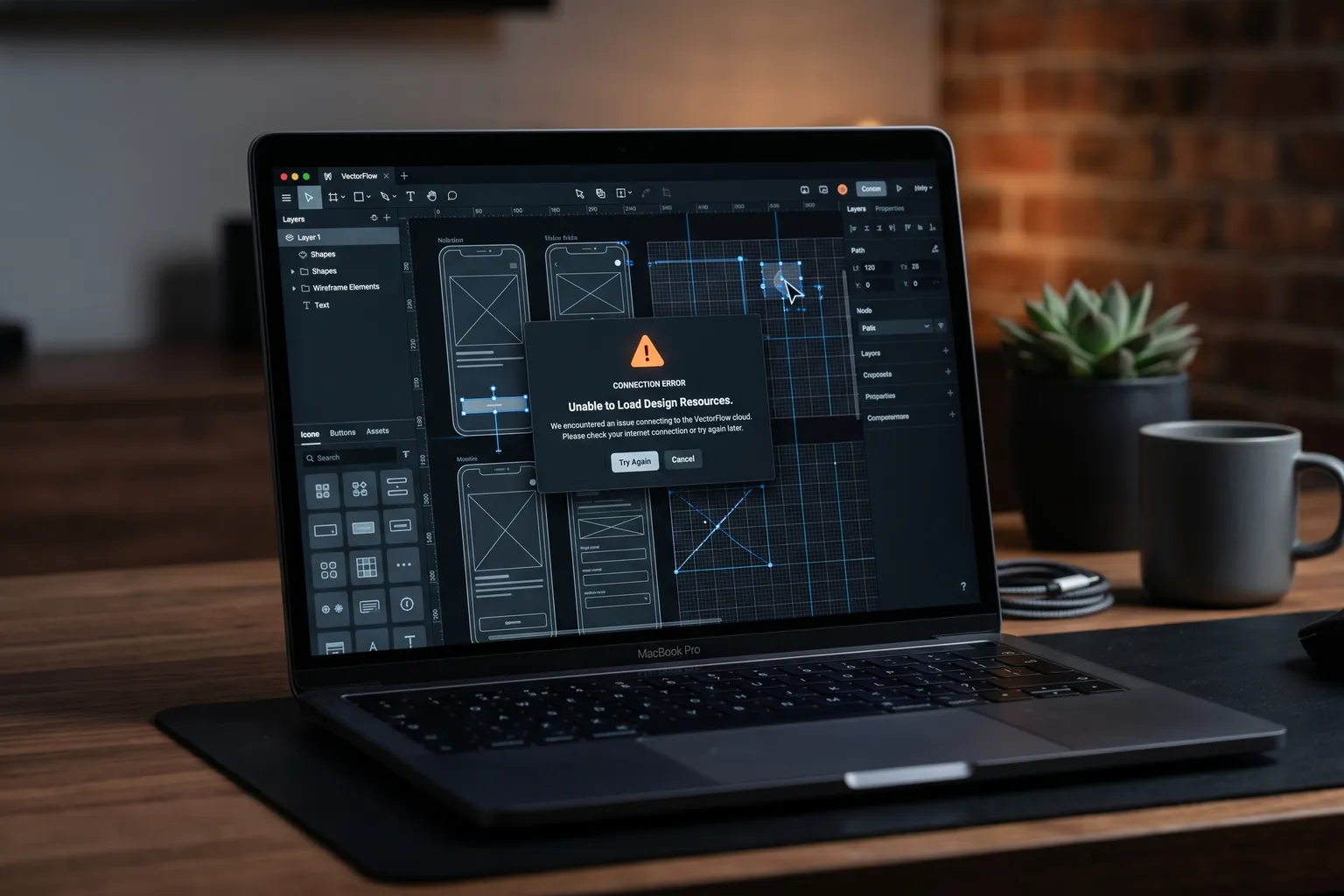
Figma failing mid-design session is a specific kind of frustrating — especially when you’re on a deadline and your multiplayer sync just decided to stop caring.
This guide covers every common Figma failure mode, from the quick one-step fixes to the more involved troubleshooting. Start at the top, work down.
Check Figma Status First
Before anything else: go to figmastatus.com and check if there’s an active incident.
Figma has service disruptions occasionally — usually brief, occasionally longer. If there’s an active incident affecting your region, nothing you do locally will fix it. Note the estimated resolution time and either wait or work offline in a local copy.
If status is green, the problem is on your end. Keep reading.
Problem 1: Figma Won’t Load in Browser
This is the most common complaint. You navigate to figma.com, the app starts loading, then nothing happens — or it loads but specific files won’t open.
Fix 1: Try incognito mode first. Open a new incognito/private window (Cmd+Shift+N on Chrome, Ctrl+Shift+N on Windows) and navigate to Figma. Incognito disables most browser extensions. If Figma loads in incognito but not in regular mode, a browser extension is the problem — test by disabling extensions one at a time.
Common culprits: ad blockers, privacy extensions, corporate security extensions, and sometimes even uBlock Origin. They sometimes block the WebSocket connections Figma uses for real-time sync.
Fix 2: Clear Chrome’s cached data. Go to Chrome Settings > Privacy and security > Clear browsing data. Select “Cached images and files” and clear it. Don’t clear cookies unless you want to sign out. Reload Figma.
Fix 3: Check your browser. Figma officially supports Chrome, Firefox, Edge, and Safari. Chrome tends to have the best performance. If you’re on an unusual browser, switch to Chrome.
Fix 4: Check system memory. Figma is memory-intensive, especially on large files. If your system is running low on RAM (Activity Monitor on Mac, Task Manager on Windows), close other applications and tabs before loading a complex Figma file.
Fix 5: Try the desktop app. If browser-based Figma is consistently failing, the Figma desktop app is more stable for complex files. It runs Electron rather than a browser tab, which gives it more memory access and avoids browser extension interference.
Problem 2: Desktop App Crashing
If the Figma desktop app crashes — especially on specific files, or repeatedly after a few minutes of use — work through this progression:
Check file complexity first. Very large files (thousands of frames, extensive components, embedded images) can push against memory limits. If the crash happens consistently on one file but not others, the file itself is the issue. Try duplicating the file and deleting half the content to test if a specific section causes the crash.
Update the app. Figma desktop app updates often include stability fixes. Open Figma > Help and Account > Check for updates. Install any available update and test again.
Clean reinstall:
On Mac:
- Quit Figma (Cmd+Q)
- Open Applications, drag Figma to Trash
- Open Terminal, run:
rm -rf ~/Library/Application\ Support/Figma - Also delete:
~/Library/Caches/com.figma.Desktop - Restart your Mac
- Download fresh from figma.com/downloads
On Windows:
- Uninstall Figma through Settings > Apps
- Delete
%AppData%\Figmaand%LocalAppData%\Figma - Restart your PC
- Reinstall from figma.com/downloads
Check graphics drivers. Figma uses GPU acceleration. On Windows especially, outdated graphics drivers can cause rendering crashes. Update your graphics drivers from NVIDIA/AMD/Intel’s driver download pages.
Problem 3: Real-Time Sync Broken
Multiplayer sync — the feature that shows other collaborators’ cursors and updates their changes in real-time — is probably the most frustrating thing to have break in Figma.
Symptoms: Your collaborators’ cursors have disappeared. Changes you make don’t show up on their screens (or vice versa). The file shows an “offline” indicator.
Root cause: almost always connection-related.
Figma uses WebSockets for real-time sync. Anything blocking WebSocket traffic breaks multiplayer. Common blockers:
- VPN: Many corporate and consumer VPNs route WebSocket traffic differently or block it entirely. Temporarily disable your VPN and test.
- Corporate firewall: If you’re on a work network, your IT department may have firewall rules blocking Figma’s WebSocket endpoints. This requires IT intervention to fix.
- Flaky internet connection: WebSockets are sensitive to connection drops that HTTP connections recover from invisibly. Run a connection stability test — something like the Cloudflare Speed Test — and look for packet loss.
Try switching networks. Connect from your phone’s hotspot instead of your home or work Wi-Fi. If sync works on the hotspot, your regular network has a problem.
Force reconnect: Click on the Figma menu > File > Reload. This forces a fresh WebSocket connection attempt.
Problem 4: Fonts Missing
The “missing fonts” warning in Figma means Figma can’t find fonts that were used in the design on your current machine. There are two scenarios:
Scenario A: The fonts aren’t installed locally. Figma works with fonts installed on your system. If the design was created on a machine with a font your machine doesn’t have, you’ll see the missing fonts dialog. Solutions:
- Install the missing fonts on your computer
- Ask the designer who created the file which fonts are used and obtain them
- Use the Substitute option in the dialog to replace with a font you do have
Scenario B: Fonts are installed but Figma can’t find them (browser mode). In browser mode, Figma can only access your local fonts through the Figma Font Helper — a small background app you install from figma.com/downloads. If Font Helper isn’t installed or isn’t running, Figma can’t see your local fonts.
- Download and install Figma Font Helper
- Make sure it’s running (check your system tray or menu bar for the Figma icon)
- Reload your browser and reopen the file
In the desktop app, Font Helper isn’t needed — the app accesses your system fonts directly. If fonts are still missing in the desktop app, they genuinely aren’t installed on your machine.
Note about Google Fonts: Figma has Google Fonts built in — you can access them without installing anything. If you’re using non-Google fonts, you need them installed locally.
Problem 5: Prototypes Not Working
Figma prototypes failing is almost always one of three things: broken connections, wrong trigger settings, or a browser/device issue.
Check connections first. In prototype mode, every navigation interaction needs a connection from the trigger element to the destination frame. Open the Prototype panel in the right sidebar. Select the element that should trigger navigation. Check that there’s a connection arrow leading to the correct frame. If there’s no arrow, create the connection.
Check trigger settings. Make sure the interaction trigger (On Click, On Hover, After Delay, etc.) matches how you’re testing. “On Drag” prototypes won’t work if you’re clicking.
Check starting frame. The prototype needs a designated starting frame. In Prototype mode, look for the “Flow” section — make sure a starting frame is set. If “No starting point” appears and you haven’t set one, Figma won’t know where to begin.
Test in presentation mode. Click the Play button to open the prototype in full presentation mode. Some interactions that seem broken in the canvas view work correctly in presentation mode.
Try a different browser. Some prototype animations and interactions are smoother in Chrome than Firefox. If something looks broken in Firefox, test in Chrome before assuming it’s a Figma bug.
Scrollable frames: If you’ve set up scrollable content inside a frame, make sure the content inside the frame is actually larger than the frame itself. No overflow content = no scroll.
Problem 6: Auto-Layout Breaking
Auto-layout is one of Figma’s most useful features and also one of the most common sources of unexpected behavior. Common issues:
Child elements not respecting constraints: When you add auto-layout to a frame, it overrides some manual constraints. If an element inside an auto-layout frame isn’t positioning correctly, check its auto-layout sizing properties in the right panel (Fixed width/height vs. Hug vs. Fill).
Nested auto-layout conflicts: Nested auto-layout (auto-layout frames inside auto-layout frames) can produce unexpected results if the parent and child have conflicting spacing or sizing modes. Work from the outside in when debugging — fix the outer container first, then the inner.
Padding and spacing not applying: Make sure you’re editing the auto-layout container’s padding, not the individual element’s position. Select the parent frame (not a child element) to adjust the auto-layout padding.
Elements jumping on resize: This is usually a Fill vs. Fixed sizing conflict. Elements set to Fill will expand to fill available space; elements set to Fixed maintain their size. Review which elements are Fill vs. Fixed in your auto-layout container.
Problem 7: Figma Offline or Can’t Access Files
If Figma shows offline or you can’t access your files:
Check your internet connection — Figma requires a connection to load files from its servers.
Check figmastatus.com — service incidents affect file loading.
Try signing out and back in — sometimes authentication sessions expire. Sign out (Account > Log Out), sign back in.
For browser: Check if your browser has cached a stale offline version. Force reload with Cmd+Shift+R (Mac) or Ctrl+Shift+R (Windows).
When to Contact Figma Support
Contact support at help.figma.com if:
- Data appears to be missing from files
- Billing or team access issues
- Enterprise SSO problems
- You’ve tried all relevant fixes above and the problem persists
Include: your Figma app version (Help and Account > About Figma), browser/OS version, what you were doing when the problem occurred, and steps to reproduce if possible.
Quick Reference
| Problem | First fix |
|---|---|
| Browser not loading | Try incognito mode |
| Desktop app crashing | Update app, then clean reinstall |
| Sync broken | Check VPN and network |
| Fonts missing | Install Figma Font Helper (browser) |
| Prototype not working | Check connections in prototype panel |
| Auto-layout broken | Check Fill vs. Fixed sizing |
| Offline errors | Check connection + figmastatus.com |
Most Figma problems have straightforward fixes. The ones that don’t are usually file complexity issues (make the file smaller) or network configuration problems (work with IT). Either way, you’re not stuck indefinitely.