
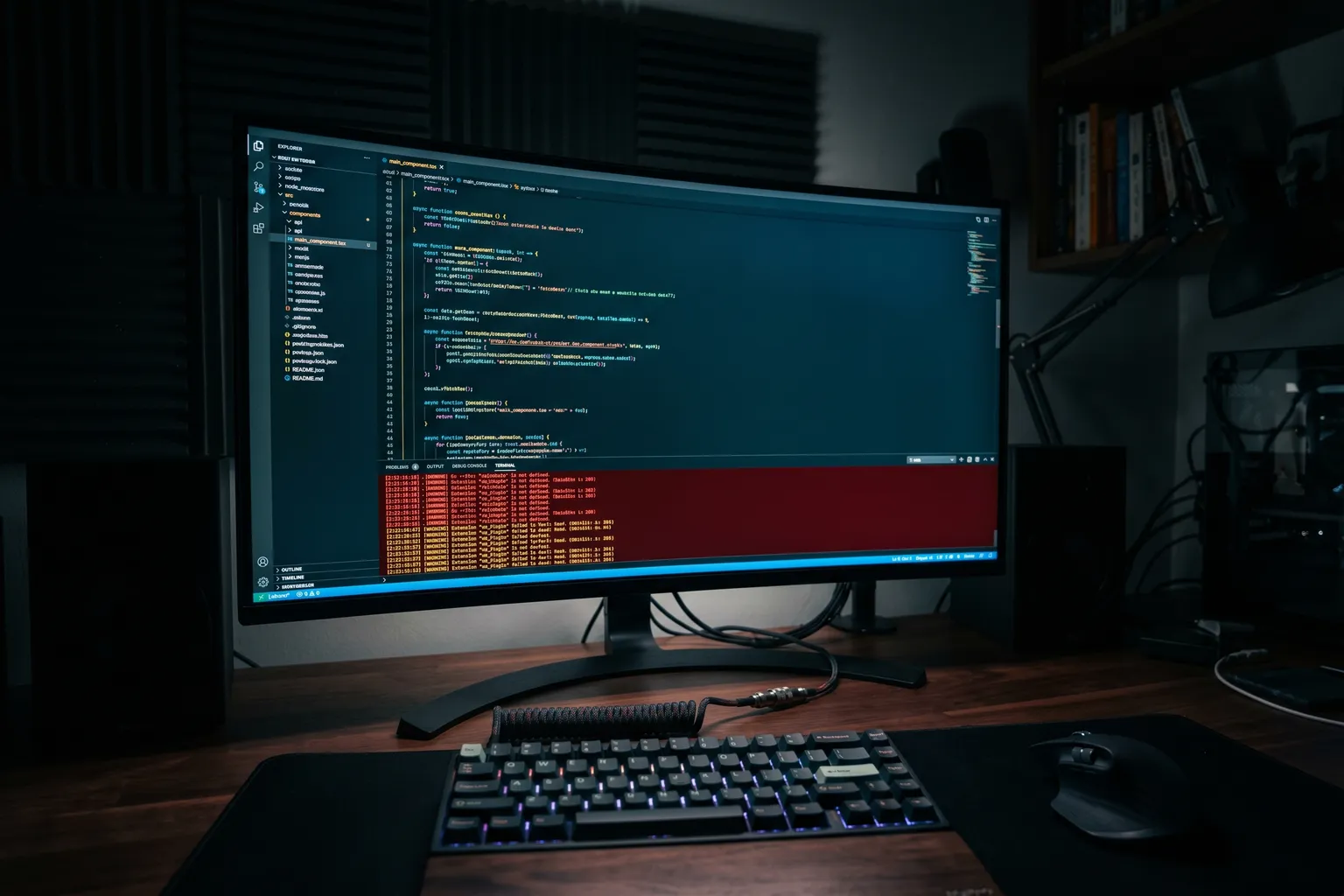
VS Code is the editor I’ve spent more hours in than I care to calculate. And I’ve hit basically every failure mode it offers.
The good news: most VS Code problems have reliable fixes. The bad news: there are a lot of them, and “VS Code is broken” can mean fifty different things. This guide covers the ones that come up most often.
Before Anything Else: Check the Version
VS Code updates constantly. The current version and the extension ecosystem track each other, and when VS Code ships a major update, extensions sometimes need a day or two to catch up.
Check your version: Help > About. Go to code.visualstudio.com and compare with the latest release. If you’re multiple minor versions behind, update.
Then check if the problem appeared right after an update. If yes, an extension conflict with the new version is likely (see the extension troubleshooting section).
Fix: Extensions Failing or Causing Problems
Extensions are the cause of more VS Code problems than anything else. The developer ecosystem is enormous and the quality varies. Extension conflicts, post-update breaks, and corrupted installs all present as weird, hard-to-trace VS Code behavior.
The nuclear diagnostic test: Disable all extensions and restart VS Code. Does the problem go away? If yes, an extension is the culprit. Re-enable extensions one at a time (or in groups) until the problem returns — that’s your culprit.
To disable all extensions quickly:
- Open Command Palette (Ctrl+Shift+P or Cmd+Shift+P)
- Run “Extensions: Disable All Installed Extensions”
- Restart VS Code
If you need to actually use VS Code while diagnosing: code --disable-extensions from the terminal opens VS Code with extensions disabled.
For a specific failing extension: Right-click it in the Extensions panel > Uninstall. Then reinstall from the Marketplace. Corrupted extension installations are more common than you’d think.
Check extension output logs: In the Output panel (View > Output), there’s a dropdown to select different log sources. Find the extension that’s failing in the list and check its output for error messages. This often reveals the actual problem.
Common specific extension failures:
Prettier not formatting: Make sure it’s set as the default formatter in settings ("editor.defaultFormatter": "esbenp.prettier-vscode"). Run Format Document manually (Shift+Alt+F) and check if it errors in the Output panel.
ESLint not showing errors: Check that ESLint is installed in your project (npm list eslint). The ESLint extension requires a local project install to function. No local eslint = no linting.
Language-specific extensions (Python, Go, Rust): These typically require the language runtime to be installed and accessible in PATH. VS Code can find Python if python3 or python works in your terminal.
Fix: Integrated Terminal Broken
The VS Code integrated terminal is genuinely useful and genuinely fragile. Issues I’ve run into:
Terminal won’t open at all:
- Try View > Terminal to force-open it
- Check if the problem is specific to your current workspace — sometimes workspace settings break terminal configuration
- Try opening a new VS Code window (File > New Window) and see if the terminal works there
Shell not found / wrong shell:
- Open Command Palette > “Terminal: Select Default Profile” and select your preferred shell (bash, zsh, PowerShell)
- On Mac, if zsh isn’t showing your dotfiles: make sure VS Code is launching zsh as a login shell. Settings.json:
"terminal.integrated.shellArgs.osx": ["-l"]
Terminal opens but commands fail / environment wrong: This usually means VS Code’s terminal doesn’t have the same PATH as your regular terminal. Common on Mac if you’re using nvm, conda, or other version managers that modify PATH via shell dotfiles.
Fix: Make sure your PATH modifications are in ~/.zshrc (not just ~/.bash_profile), and that your shell initializes correctly in VS Code.
On Mac — “Operation not permitted” errors: VS Code needs Full Disk Access to run certain terminal operations on macOS. System Settings > Privacy & Security > Full Disk Access — add VS Code.
Terminal rendering glitches: Try changing the terminal renderer: Settings > search “terminal.integrated.gpuAcceleration” > change to “off”. This disables GPU-accelerated rendering which causes visual artifacts on some systems.
Fix: Git Errors
VS Code has solid Git integration, and when it breaks, it’s usually one of these:
“Git not found” or no source control panel:
VS Code needs Git in your system PATH. Verify: open a terminal (outside VS Code) and run git --version. If that fails, install Git from git-scm.com and restart VS Code.
If Git is installed but VS Code still can’t find it, you can manually specify the path: Settings > search “git.path” > set it to your git binary location (e.g., /usr/bin/git or C:\Program Files\Git\bin\git.exe).
Credential/authentication errors: Git credential failures in VS Code usually mean your Git credential helper isn’t set up or your token has expired.
For GitHub HTTPS: GitHub uses personal access tokens now, not passwords. If you’re getting auth failures, generate a new PAT in GitHub Settings > Developer settings > Personal access tokens.
For credential storage: Make sure git config --global credential.helper is set (on Mac: osxkeychain, on Windows: manager, on Linux: store or cache).
Merge conflict markers not highlighting: This is almost always an extension issue. Check that the GitLens extension (if installed) is functioning. Or install the “Git History” or “Git Graph” extension which include conflict visualization.
Large repo performance: In large repositories (tens of thousands of files), VS Code’s Git status checking can be slow. You can limit it: Settings > “git.autorefresh” set to false to turn off automatic refresh, or exclude large generated directories from Git scanning.
Fix: IntelliSense Not Working
IntelliSense — autocomplete, type hints, hover documentation — breaking is painful. The fix depends on what language you’re working in.
TypeScript / JavaScript: The TypeScript language server runs as a background process. If it crashes or freezes, IntelliSense goes quiet.
Fix: Ctrl+Shift+P > “TypeScript: Restart TS Server”. This kills and restarts the language server without restarting VS Code.
If that doesn’t help: make sure you have a tsconfig.json (for TypeScript projects) or jsconfig.json (for JavaScript projects) in your project root. VS Code uses these to understand project scope.
Python: IntelliSense for Python comes from the Pylance extension. Make sure Pylance is installed.
Common Python IntelliSense issue: VS Code is using the wrong Python interpreter. Ctrl+Shift+P > “Python: Select Interpreter” — choose the correct environment (venv, conda env, or system Python).
Other languages (Go, Rust, Java, etc.):
Language IntelliSense requires the language-specific extension AND the language runtime installed. For Go: install the Go extension and make sure go is in PATH. For Rust: install rust-analyzer extension. For Java: install the Extension Pack for Java and make sure JDK is installed and configured.
IntelliSense lag:
If suggestions appear but are very slow, check for high CPU usage from language server processes. On Mac, check Activity Monitor for processes like tsserver, pylsp, or rust-analyzer using excessive CPU. Sometimes a language server gets stuck in a loop — restarting it (see above) or restarting VS Code fixes it.
Fix: Remote SSH Issues
VS Code Remote SSH is powerful but has specific failure modes.
“Could not establish connection to server” on connect:
- Check that SSH is installed and the host is reachable:
ssh user@hostnamefrom your terminal - Check that VS Code Server is installable on the remote: it needs write access to
~/.vscode-server - Check your SSH key permissions: the private key file should be 600 (
chmod 600 ~/.ssh/id_rsa)
“Failed to download VS Code Server”: This means the remote host can’t reach the internet to download VS Code Server. Either configure proxy settings on the remote host, or use the VS Code Remote SSH extension’s “Copy VS Code Server to remote” workflow for air-gapped machines.
Extensions not available in remote: Extensions installed locally aren’t automatically available in remote sessions. In the Extensions panel, extensions will show with a “Install in SSH: hostname” button. Install them explicitly in the remote context.
SSH connection drops:
Set ServerAliveInterval 60 and ServerAliveCountMax 5 in your local ~/.ssh/config to keep the connection alive.
Fix: Settings Sync Problems
VS Code Settings Sync keeps your settings, extensions, and keybindings consistent across machines. When it breaks:
Sync not updating: Ctrl+Shift+P > “Settings Sync: Show Log” — check for error messages. Common issue: GitHub or Microsoft authentication expired. Sign out of Settings Sync and sign back in.
Conflicting settings between machines: Open Command Palette > “Settings Sync: Open Accepted” to see what’s currently synced. You can resolve conflicts by editing your settings.json directly and manually pushing: “Settings Sync: Upload Settings”.
Sync causing problems (wrong extensions appearing, settings reverting): Temporarily disable Settings Sync (Settings > search “Settings Sync” > toggle off), fix your local configuration, then re-enable and push your corrected settings up.
The Nuclear Option: Clean Install
If VS Code is persistently broken and you can’t trace the cause, a clean install resolves most deeply corrupted states.
Steps:
- Note your extensions (take a screenshot of the Extensions panel or export:
code --list-extensions > extensions.txt) - Uninstall VS Code via Applications/Apps
- Delete user data:
- Mac:
~/Library/Application Support/Codeand~/.vscode - Windows:
%APPDATA%\Codeand%USERPROFILE%\.vscode - Linux:
~/.config/Codeand~/.vscode
- Mac:
- Reinstall from code.visualstudio.com
- Re-enable Settings Sync (if you use it) to restore settings and extensions automatically
A clean install takes 5 minutes and fixes a surprising number of “nothing works and I don’t know why” situations.
Quick Reference
| Problem | Fix |
|---|---|
| Extensions broken | Disable all, re-enable one by one |
| IntelliSense gone | Restart language server (TS: Restart TS Server) |
| Terminal broken | Change default shell profile |
| Git not found | Install Git, check PATH, restart VS Code |
| Remote SSH failing | Check SSH key, verify server access |
| Settings reverting | Check Settings Sync log, sign out/in |
| Everything broken | Clean install |